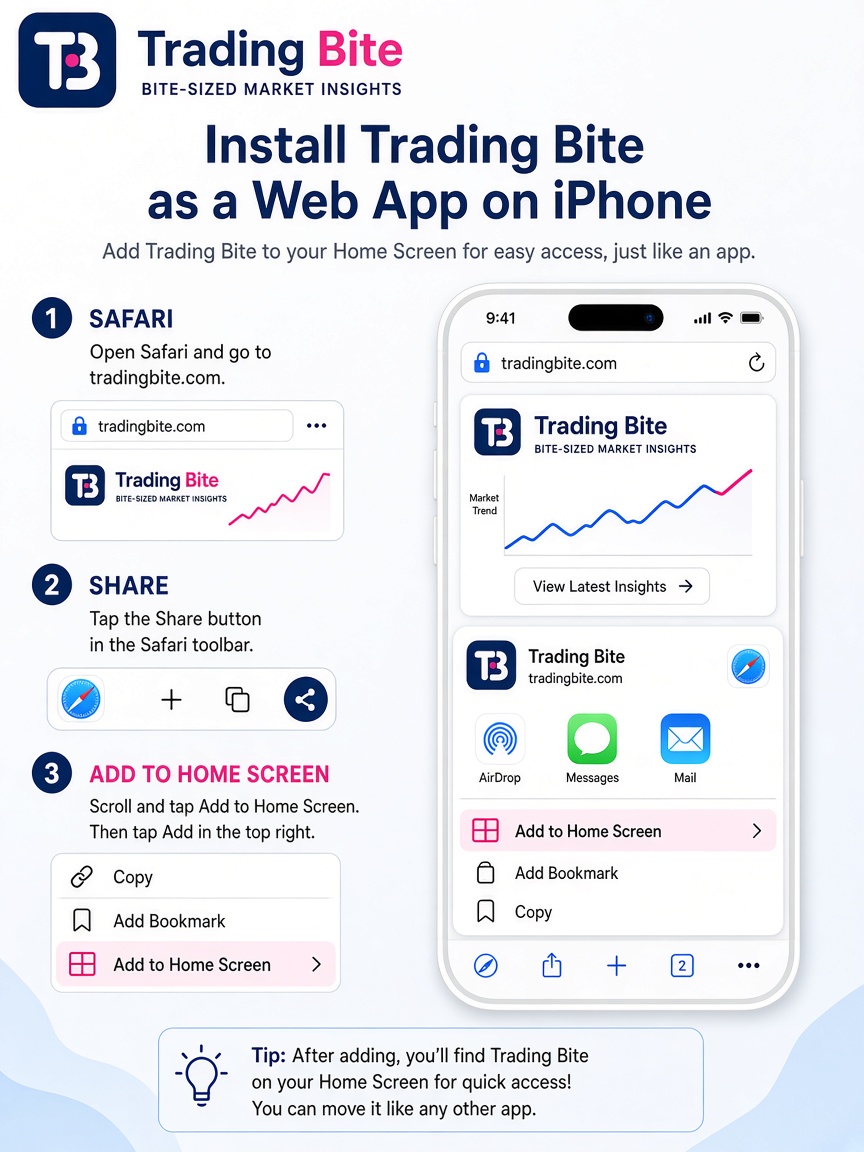
1
Open in Safari
On your iPhone, open Safari (not Chrome or Instagram in-app browser). Go to community.tradingbite.net
Trading Bite Community
Put Trading Bite Community on your phone Home Screen — free, no App Store download.
Everything you need in one place.
Follow the pictures. Takes about one minute.
On your iPhone, open Safari (not Chrome or Instagram in-app browser). Go to community.tradingbite.net
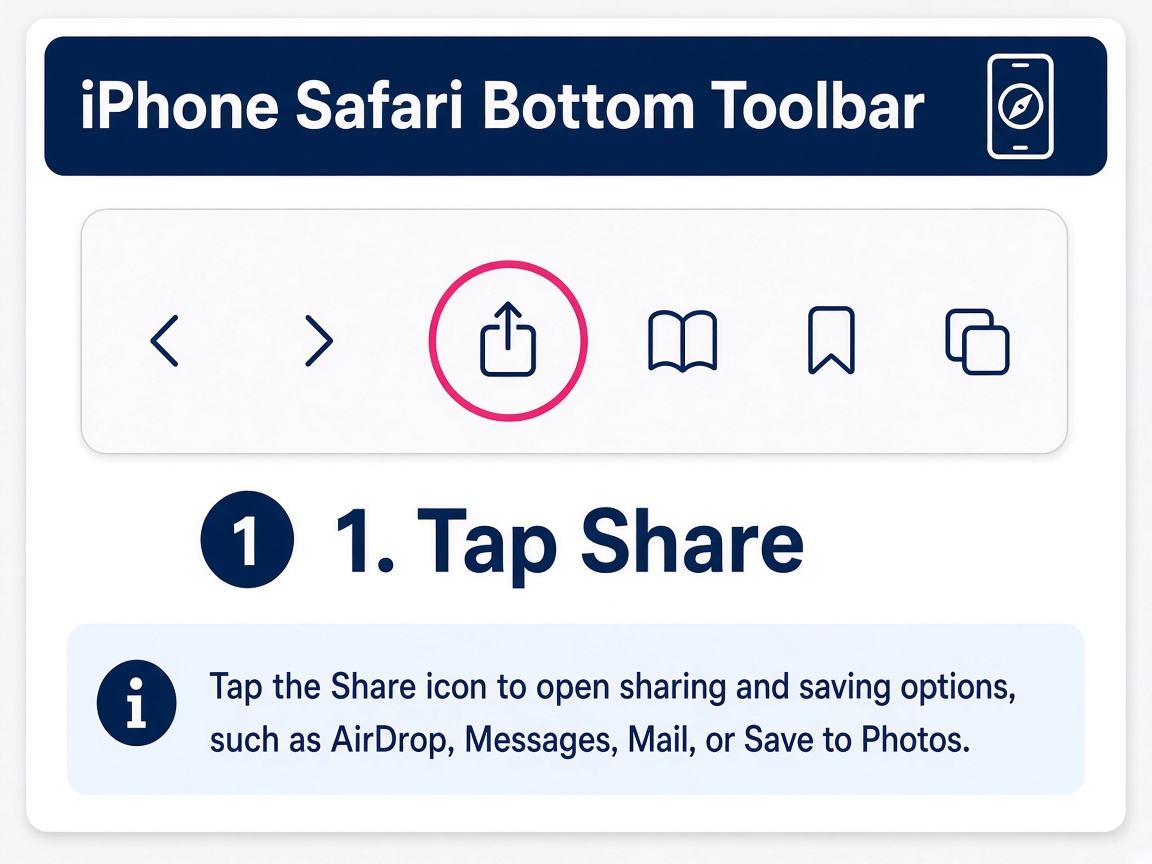
Tap the Share button at the bottom of Safari (square with an upward arrow).
Look for the Share icon
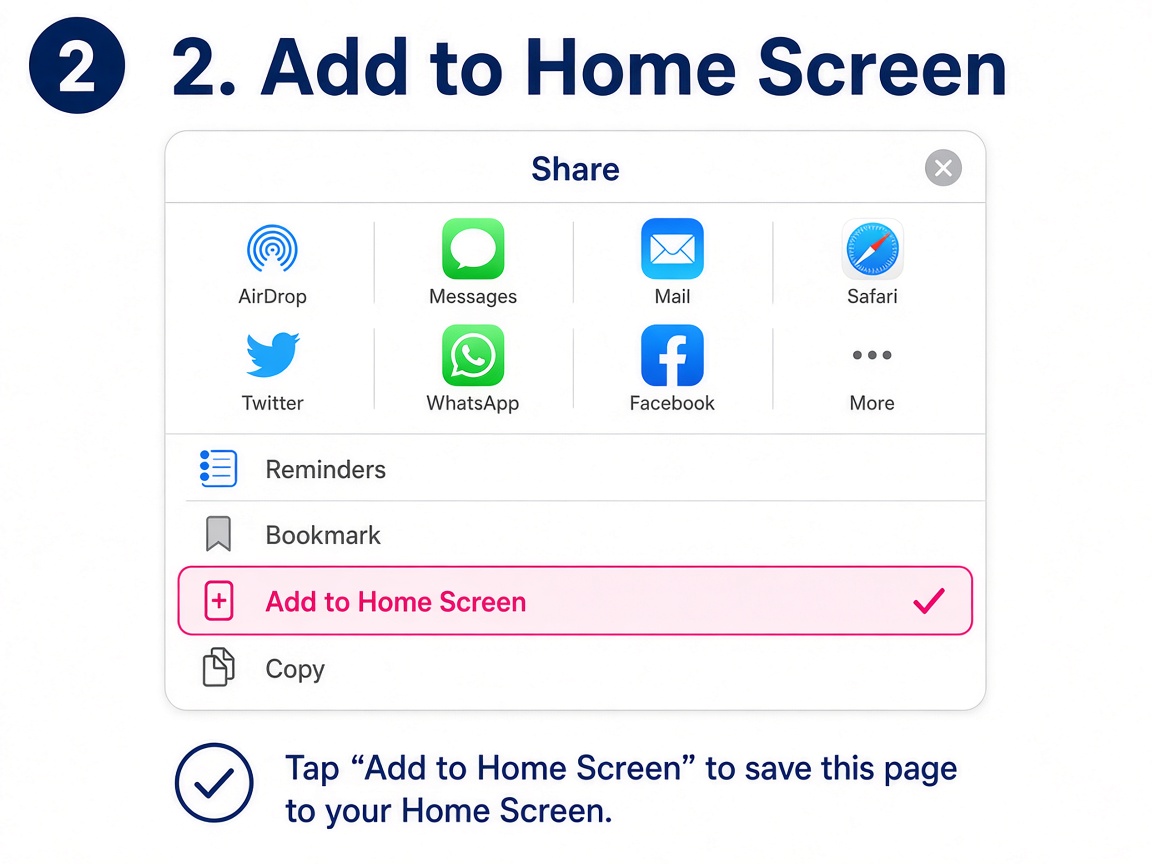
Scroll the share sheet and tap “Add to Home Screen”. Confirm with Add.
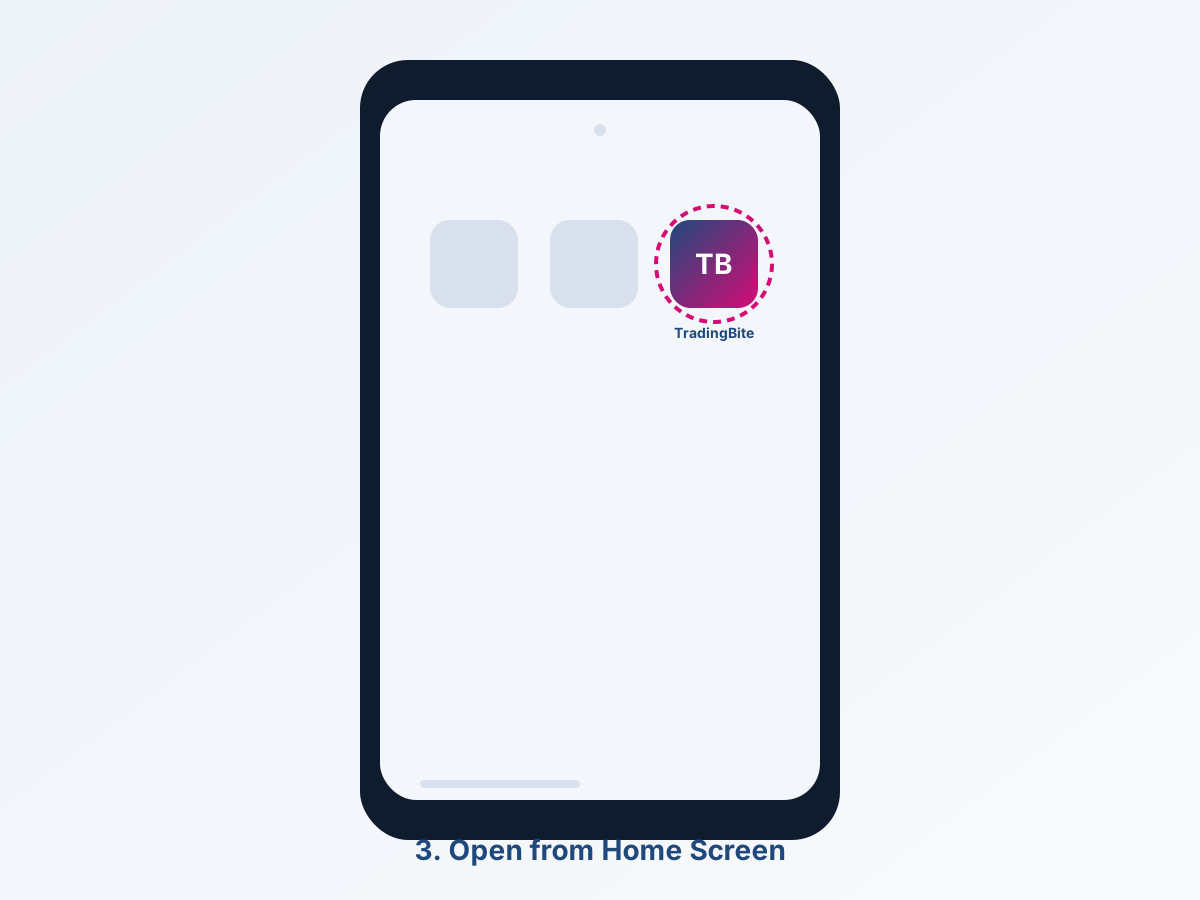
Find the TradingBite icon on your Home Screen and open it. Then Log in with your existing account.
Tip: On iPhone use Safari. On Android use Chrome. In-app browsers (WhatsApp / Instagram) often hide Install options — open the link in your real browser first.